
React Native Localize: Complete Tutorial and Best Practices
When I first started building React Native apps for global markets, I made a classic mistake: I hardcoded English strings everywhere. Three months later, when we decided to launch in Japan, rewriting the entire UI was a nightmare.
If you're reading this, you're probably smarter than I was back then. You want to implement localization from the start—or you're retrofitting it into an existing app.
Either way, react-native-localize is the foundation you need. Let me walk you through everything I've learned from localizing multiple production React Native apps.
What is react-native-localize?
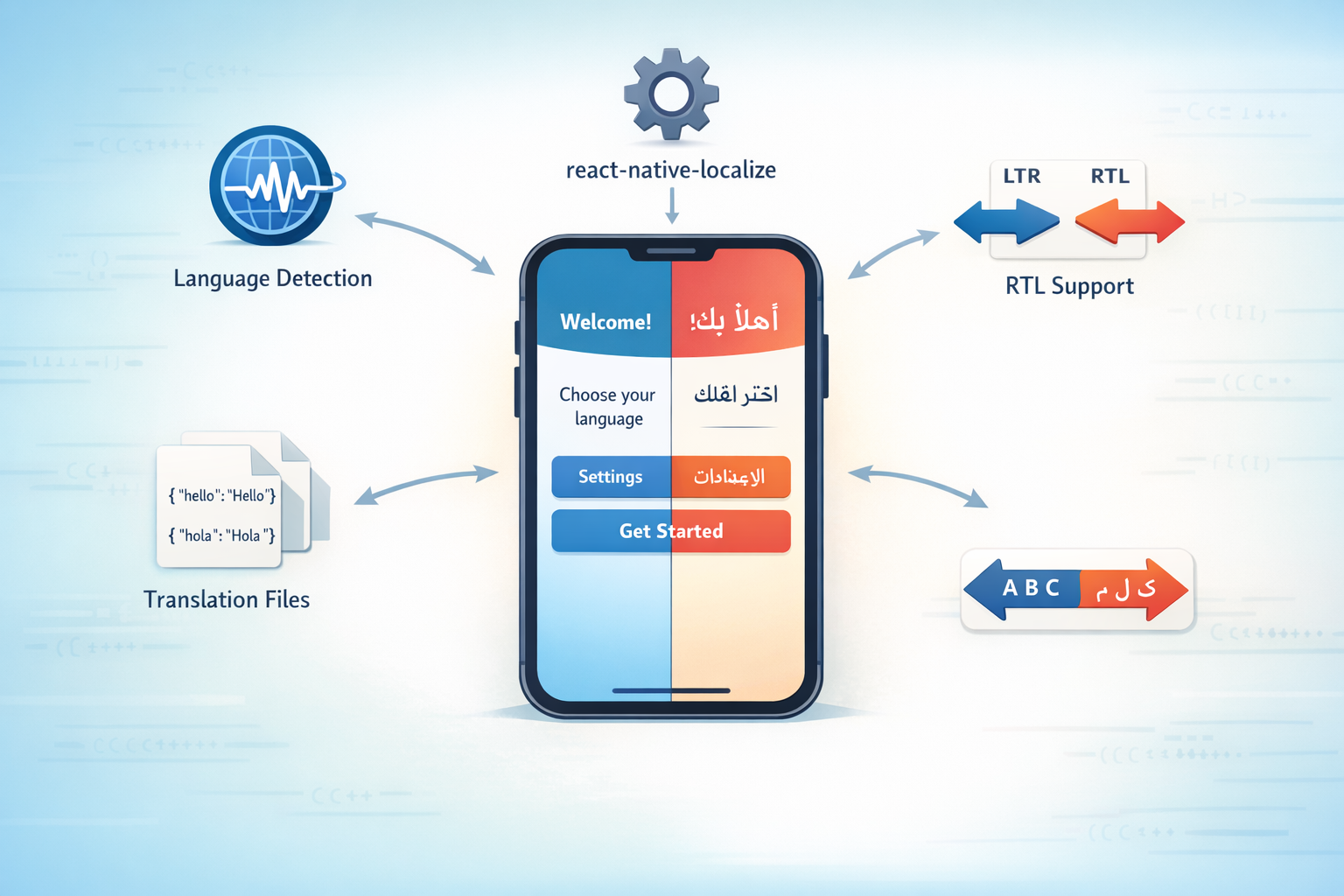
react-native-localize is a library that helps you detect the user's device locale and preferences. It doesn't translate anything itself—it just tells you where your user is and what language they speak.
Think of it as the "eyes and ears" of your localization system. It gathers information, and then you use another library (like i18n-js or react-i18next) to actually translate text.
Why use it?
- Accurate locale detection (better than React Native's built-in methods)
- Access to device calendars, currencies, and time zones
- RTL (right-to-left) language support
- Lightweight and well-maintained
Step 1: Installation
First, install the library:
npm install react-native-localize
# or
yarn add react-native-localize
For React Native 0.60+, autolinking should handle everything. If you're on an older version, you might need to link manually:
react-native link react-native-localize
Step 2: Basic Locale Detection
Let's start with the simplest use case: detecting the user's language.
import * as Localize from "react-native-localize";

function App() {
  const locales = Localize.getLocales();

  // Get the first preferred locale
  const deviceLocale = locales[0].languageCode;
  // e.g., "en", "ja", "es", "fr"

  console.log("Device locale:", deviceLocale);

  return <Text>Your device is set to: {deviceLocale}</Text>;
}
This gives you the ISO 639-1 language code (like "en" for English, "ja" for Japanese).
Step 3: Getting Detailed Locale Information
Sometimes you need more than just the language code. Here's how to get full details:
import * as Localize from "react-native-localize";

function getLocaleInfo() {
  const locales = Localize.getLocales();

  const firstLocale = locales[0];

  console.log({
    languageCode: firstLocale.languageCode, // "en"
    languageTag: firstLocale.languageTag, // "en-US"
    countryCode: firstLocale.countryCode, // "US"
    isRTL: firstLocale.isRTL, // false
    displayName: firstLocale.displayName, // "English (United States)"
  });
}
This is useful when you need to distinguish between regional variants (like "en-US" vs "en-GB").
Step 4: Handling Multiple Locales
Users often have multiple locales configured. Here's how to handle that:
import * as Localize from "react-native-localize";

function findBestSupportedLocale(supportedLocales) {
  const deviceLocales = Localize.getLocales();

  // Try to find an exact match
  for (const deviceLocale of deviceLocales) {
    if (supportedLocales.includes(deviceLocale.languageTag)) {
      return deviceLocale.languageTag;
    }
  }

  // Fall back to language code only
  for (const deviceLocale of deviceLocales) {
    if (supportedLocales.includes(deviceLocale.languageCode)) {
      return deviceLocale.languageCode;
    }
  }

  // Default to first supported locale
  return supportedLocales[0];
}

// Usage
const supportedLocales = ["en", "es", "fr", "ja", "zh"];
const bestLocale = findBestSupportedLocale(supportedLocales);
This ensures you always pick the best match from your supported languages.
Step 5: Setting Up i18n-js
Now let's combine react-native-localize with a translation library. I recommend i18n-js for React Native:
npm install i18n-js
Set it up:
// i18n.js
import * as Localize from "react-native-localize";
import { I18n } from "i18n-js";

// Import your translation files
import en from "./locales/en.json";
import es from "./locales/es.json";
import fr from "./locales/fr.json";
import ja from "./locales/ja.json";

// Set up i18n-js
const i18n = new I18n({
  en,
  es,
  fr,
  ja,
});

// Set the locale based on device settings
const deviceLocale = Localize.getLocales()[0].languageCode;
i18n.locale = findBestSupportedLocale([en, es, fr, ja], deviceLocale);

// Enable fallbacks
i18n.enableFallback = true;
i18n.defaultLocale = "en";

export default i18n;
Your translation files would look like this:
// locales/en.json
{
  "welcome": "Welcome to our app",
  "get_started": "Get Started",
  "settings": "Settings"
}

// locales/ja.json
{
  "welcome": "アプリへようこそ",
  "get_started": "始める",
  "settings": "設定"
}
Step 6: Using Translations in Components
Now you can use translations throughout your app:
import React from "react";
import { View, Text, Button } from "react-native";
import i18n from "./i18n";

function WelcomeScreen() {
  return (
    <View style={{ padding: 20 }}>
      <Text style={{ fontSize: 24, marginBottom: 20 }}>
        {i18n.t("welcome")}
      </Text>

      <Button
        title={i18n.t("get_started")}
        onPress={() => console.log("Get started pressed")}
      />

      <Button
        title={i18n.t("settings")}
        onPress={() => console.log("Settings pressed")}
      />
    </View>
  );
}
Step 7: Handling RTL Languages
Some languages (Arabic, Hebrew, Persian) are written right-to-left. React Native makes this easy:
import * as Localize from "react-native-localize";
import { I18nManager } from "react-native";

function setupRTL() {
  const locales = Localize.getLocales();
  const isRTL = locales[0].isRTL;

  if (isRTL && !I18nManager.isRTL) {
    I18nManager.allowRTL(true);
    I18nManager.forceRTL(true);

    // You might need to reload the app
    // RNRestart.Restart();
  }
}

// Call this on app startup
setupRTL();
Now your layouts will automatically flip for RTL languages. Just make sure you're using flexDirection: 'row' instead of hardcoded left/right values.
Step 8: Handling Number and Date Formatting
Different locales format numbers and dates differently:
import * as Localize from "react-native-localize";

function formatNumber(number) {
  const locale = Localize.getLocales()[0].languageTag;
  return new Intl.NumberFormat(locale).format(number);
}

function formatDate(date) {
  const locale = Localize.getLocales()[0].languageTag;
  return new Intl.DateTimeFormat(locale, {
    year: "numeric",
    month: "long",
    day: "numeric",
  }).format(date);
}

// Usage
console.log(formatNumber(1234567.89));
// US: "1,234,567.89"
// DE: "1.234.567,89"
// JP: "1,234,567.89"

console.log(formatDate(new Date()));
// US: "January 2, 2026"
// JP: "2026年1月2日"
// FR: "2 janvier 2026"
Step 9: Currency Formatting
Currency formatting is especially important for e-commerce apps:
import * as Localize from "react-native-localize";

function formatCurrency(amount, currency = "USD") {
  const locale = Localize.getLocales()[0].languageTag;
  return new Intl.NumberFormat(locale, {
    style: "currency",
    currency: currency,
  }).format(amount);
}

// Usage
console.log(formatCurrency(99.99, "USD")); // "$99.99"
console.log(formatCurrency(99.99, "EUR")); // "99,99 €"
console.log(formatCurrency(99.99, "JPY")); // "¥100"
Step 10: Testing Different Locales
Testing localization can be tricky. Here's how to simulate different locales:
// In development, you can force a specific locale
if (__DEV__) {
  const testLocale = "ja"; // Change this to test different languages
  i18n.locale = testLocale;

  if (testLocale === "ar" || testLocale === "he") {
    I18nManager.forceRTL(true);
  } else {
    I18nManager.forceRTL(false);
  }
}
Or change your device's language settings in the simulator/emulator to test real behavior.
Common Pitfalls
1. Forgetting to Restart After RTL Changes
RTL changes often require a restart to take effect:
import RNRestart from "react-native-restart";

function enableRTL() {
  I18nManager.forceRTL(true);
  RNRestart.Restart();
}
2. Hardcoded Strings
Always wrap user-facing text in translation calls:
// Bad
<Text>Hello World</Text>

// Good
<Text>{i18n.t('hello_world')}</Text>
3. Not Handling Missing Translations
Always provide fallbacks:
function safeTranslate(key) {
  const translation = i18n.t(key);

  // If translation is the same as the key, it's missing
  if (translation === key) {
    console.warn(`Missing translation for: ${key}`);
    return key; // Or return a default
  }

  return translation;
}
4. Ignoring Text Direction in Custom Components
If you build custom components, respect RTL:
function CustomRow({ children }) {
  return (
    <View style={{ flexDirection: I18nManager.isRTL ? "row-reverse" : "row" }}>
      {children}
    </View>
  );
}
A Modern Alternative: File-Free Localization
If managing JSON translation files feels like overhead, you're not alone. Modern tools like AutoLocalise eliminate translation files entirely:
import { useAutoTranslate } from "react-autolocalise";

function WelcomeScreen() {
  const { t } = useAutoTranslate();

  return (
    <View>
      <Text>{t("Welcome to our app")}</Text>
      <Button title={t("Get Started")} />
    </View>
  );
}
No JSON files, no manual updates, real-time translation. Just install and go.
Best Practices Summary
- Detect locale early: Initialize localization as soon as your app starts
- Handle RTL properly: Test with Arabic and Hebrew
- Provide fallbacks: Always have a default locale
- Format locally: Use locale-specific number, date, and currency formatting
- Test thoroughly: Change device language to verify behavior
- Keep it simple: Don't overcomplicate your translation structure
FAQ
Q: Does react-native-localize work with Expo?
A: Yes, it works with both bare React Native and Expo projects. For Expo managed workflow, use expo-localization instead.
Q: How do I persist the user's language choice?
A: Store it in AsyncStorage and set it on app startup:
import AsyncStorage from "@react-native-async-storage/async-storage";

async function setSavedLocale() {
  const savedLocale = await AsyncStorage.getItem("userLocale");
  if (savedLocale) {
    i18n.locale = savedLocale;
  }
}
Q: Can I change the language in-app without restarting?
A: Yes, just update i18n.locale and re-render your components. For RTL changes, you'll need to restart.
Q: What about pluralization?
A: i18n-js supports pluralization. Check their documentation for details.
Q: How do I handle dynamic content (like user names)?
A: Use interpolation:
// Translation file
{
  "welcome_user": "Welcome, %{name}!"
}

// Usage
i18n.t('welcome_user', { name: 'John' })
Continue Reading: React Native & Expo Localization Best Practices