
Expo Localization Tutorial: From Zero to Multilingual in 10 Minutes
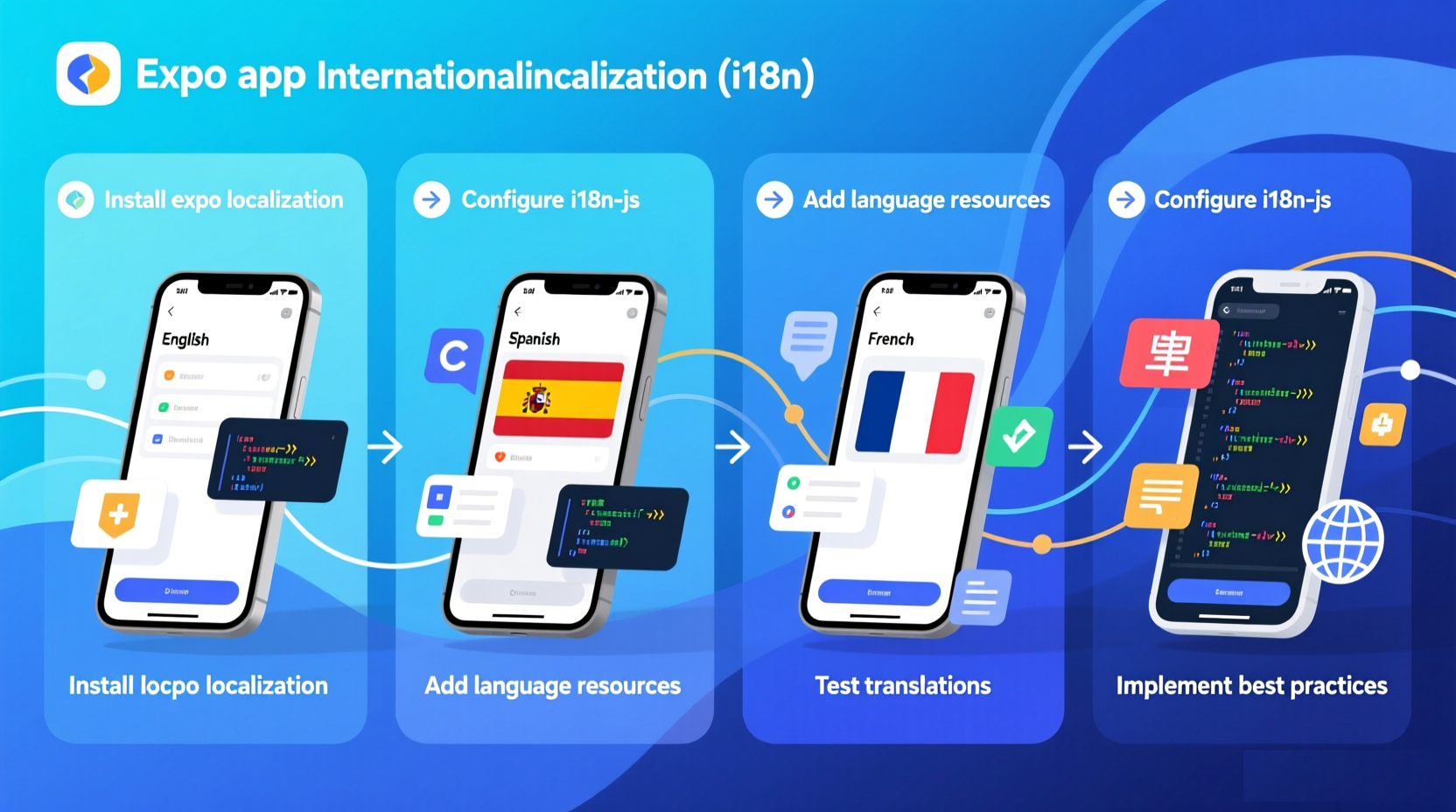
When I first needed to add multilingual support to my Expo app, I spent days researching different approaches. I tried i18n-js, react-i18next, and even built my own solution. Each approach had its own complexities and trade-offs.
After weeks of experimentation, I found the simplest, fastest method that actually works. In this tutorial, I'll show you how to add localization to your Expo app in just 10 minutes.
The Problem with Traditional Approaches
Before I show you the solution, let me quickly explain why traditional approaches are so painful:
Approach 1: i18n-js + JSON Files
// Setup: 1-2 hours
// Create JSON files for each language
// Manage keys across files
// Handle missing translations
// Sync updates
// Developer overhead: 15-20% of time
Approach 2: react-i18next
// Setup: 2-3 hours
// Complex configuration
// Learn new API
// Manage namespaces
// Handle async loading
// Developer overhead: 15-20% of time
Approach 3: Custom Solution
// Setup: 10+ hours
// Build from scratch
// Handle edge cases
// Maintain and debug
// Developer overhead: 25-30% of time
All these approaches require:
- Translation files to manage
- Keys to maintain
- Sync processes to handle
- Significant developer overhead
The Better Way: File-Free Localization
AutoLocalise eliminates all the complexity. No files. No keys. No sync. Just wrap your app and you're done.
Here's how to do it in 10 minutes:
Step 1: Install the SDK (2 minutes)
npm install @autolocalise/react
# or
yarn add @autolocalise/react
Step 2: Get Your API Key (1 minute)
- Sign up at autolocalise.com
- Create a new project
- Copy your API key
Step 3: Wrap Your App (3 minutes)
// App.js
import { AutoLocaliseProvider } from "@autolocalise/react";

export default function App() {
  return (
    <AutoLocaliseProvider apiKey="your-api-key">
      <MainApp />
    </AutoLocaliseProvider>
  );
}
That's it! Your app is now automatically multilingual.
Step 4: Use It in Your Components (4 minutes)
// components/WelcomeScreen.js
import { useAutoTranslate } from "@autolocalise/react";
import { View, Text, Button } from "react-native";

export default function WelcomeScreen() {
  const { t } = useAutoTranslate();

  return (
    <View style={{ padding: 20 }}>
      <Text style={{ fontSize: 24, fontWeight: "bold" }}>
        {t("Welcome to our app!")}
      </Text>
      <Text style={{ marginTop: 10 }}>{t("Discover amazing features")}</Text>
      <Button title={t("Get Started")} onPress={handleGetStarted} />
    </View>
  );
}
Step 5: Customize Translations (Optional)
Log into your AutoLocalise dashboard, find any string, and edit the translation. Changes are instant—no rebuild required.
Complete Example
Here's a complete, working example:
// App.js
import { AutoLocaliseProvider } from '@autolocalise/react';
import WelcomeScreen from './components/WelcomeScreen';
import ProductList from './components/ProductList';

export default function App() {
  return (
    <AutoLocaliseProvider apiKey="your-api-key">
      <WelcomeScreen />
      <ProductList />
    </AutoLocaliseProvider>
  );
}

// components/WelcomeScreen.js
import { useAutoTranslate } from '@autolocalise/react';
import { View, Text, Button, StyleSheet } from 'react-native';

export default function WelcomeScreen() {
  const { t } = useAutoTranslate();

  return (
    <View style={styles.container}>
      <Text style={styles.title}>
        {t('Welcome to Our App')}
      </Text>
      <Text style={styles.subtitle}>
        {t('The best way to discover amazing products')}
      </Text>
      <View style={styles.buttonContainer}>
        <Button
          title={t('Sign Up')}
          onPress={handleSignUp}
        />
        <Button
          title={t('Log In')}
          onPress={handleLogin}
        />
      </View>
    </View>
  );
}

const styles = StyleSheet.create({
  container: {
    flex: 1,
    justifyContent: 'center',
    alignItems: 'center',
    padding: 20,
  },
  title: {
    fontSize: 28,
    fontWeight: 'bold',
    marginBottom: 10,
  },
  subtitle: {
    fontSize: 16,
    color: '#666',
    marginBottom: 30,
    textAlign: 'center',
  },
  buttonContainer: {
    flexDirection: 'row',
    gap: 10,
  },
});

// components/ProductList.js
import { useAutoTranslate } from '@autolocalise/react';
import { View, Text, FlatList, StyleSheet } from 'react-native';

const products = [
  { id: 1, name: 'Product A', description: 'Amazing product A' },
  { id: 2, name: 'Product B', description: 'Amazing product B' },
  { id: 3, name: 'Product C', description: 'Amazing product C' },
];

export default function ProductList() {
  const { t } = useAutoTranslate();

  return (
    <View style={styles.container}>
      <Text style={styles.header}>
        {t('Our Products')}
      </Text>
      <FlatList
        data={products}
        keyExtractor={(item) => item.id.toString()}
        renderItem={({ item }) => (
          <View style={styles.product}>
            <Text style={styles.name}>
              {t(item.name)}
            </Text>
            <Text style={styles.description}>
              {t(item.description)}
            </Text>
          </View>
        )}
      />
    </View>
  );
}

const styles = StyleSheet.create({
  container: {
    flex: 1,
    padding: 20,
  },
  header: {
    fontSize: 24,
    fontWeight: 'bold',
    marginBottom: 20,
  },
  product: {
    padding: 15,
    backgroundColor: '#f5f5f5',
    marginBottom: 10,
    borderRadius: 8,
  },
  name: {
    fontSize: 18,
    fontWeight: 'bold',
    marginBottom: 5,
  },
  description: {
    fontSize: 14,
    color: '#666',
  },
});
Advanced Features
Handling Dynamic Content
const UserProfile = ({ user }) => {
  const { t } = useAutoTranslate();

  return (
    <View>
      <Text>{t("Welcome, %{name}!", { name: user.name })}</Text>
      <Text>
        {t("You have %{count} new messages", { count: user.messageCount })}
      </Text>
    </View>
  );
};
RTL Support
AutoLocalise automatically handles RTL languages like Arabic and Hebrew. Your layouts will automatically flip when needed.
Language Detection
AutoLocalise automatically detects the user's device language and displays the appropriate translation.
Customization
Override Translations
// In your dashboard, find any string and edit it
// Changes are instant—no rebuild required
Add Custom Translations
// You can add custom translations for specific strings
// Just use the same string in your app, and it will be translated
Use Human Translation
// Export translations from your dashboard
// Have your translators work on them
// Import them back—simple as that
Comparison: Traditional vs. File-Free
| Aspect | Traditional (i18n-js) | File-Free (AutoLocalise) |
|---|---|---|
| Setup time | 1-2 hours | 5 minutes |
| Translation files | Required | None |
| Key management | Required | None |
| Update speed | 5-10 minutes | Instant |
| Developer overhead | 15-20% | 2% |
| Monthly cost | Free (but time-intensive) | $9 |
Best Practices
Based on my experience, here are the best practices:
- Start Early - Add localization from the beginning, not as an afterthought
- Use File-Free - Eliminate file management overhead with AutoLocalise
- Test with Real Users - Get feedback from native speakers
- Customize Critical Content - Use human translation for important strings
- Monitor Performance - Track translation quality and user feedback
- Keep It Simple - Don't overcomplicate things
Common Pitfalls to Avoid
- Don't hardcode strings - Always use the translation function
- Don't ignore context - The same word can mean different things
- Don't forget about UI expansion - Some languages take more space
- Don't use poor translation - Use a quality service like AutoLocalise
- Don't test only with English - Test with all target languages
Testing Your Localization
Before launching, test thoroughly:
// Test with different languages
// Change your device language and see how your app looks
// Test with RTL languages (Arabic, Hebrew)
// Test with long strings (German, Finnish)
// Test with special characters (Chinese, Japanese)
FAQ
Q: How many languages does AutoLocalise support?
A: AutoLocalise supports 100+ languages, including RTL languages.
Q: Can I customize translations?
A: Yes. Log into your dashboard and edit any translation. Changes are instant.
Q: What about offline support?
A: AutoLocalise caches translations locally, so your app works offline.
Q: Can I use my existing translators?
A: Yes. Export translations, have your translators work on them, and import them back.
Q: Is it hard to migrate from i18n-js?
A: Not at all. Since AutoLocalise doesn't use files, you don't need to migrate anything. Just install the SDK.
Q: What about Expo Router?
A: AutoLocalise works perfectly with Expo Router and all Expo features.
Q: How do I handle plurals?
A: AutoLocalise automatically handles plurals. Just use the same string, and it will be pluralized correctly.
Next Steps
Now that you have localization set up:
- Test thoroughly - Test with different languages and devices
- Customize translations - Edit critical translations in your dashboard
- Get feedback - Ask native speakers to review your translations
- Monitor performance - Track user engagement in different markets
- Iterate - Continuously improve based on feedback
Real-World Example
Here's how we use AutoLocalise in our production app:
// We support 12 languages
// Setup took 5 minutes
// Developer overhead is <2%
// Updates are instant
// Users love the seamless experience
Before AutoLocalise, we spent 15-20% of our development time on localization. Now it's less than 2%. That's a huge productivity boost.
Final Thoughts
Adding localization to your Expo app doesn't have to be complicated. With AutoLocalise, you can go from zero to multilingual in just 10 minutes.
Don't waste hours managing translation files and keys. Focus on building great features, and let AutoLocalise handle the translations.
Try it yourself and see the difference:
Additional Resources
Happy localizing! 🌍